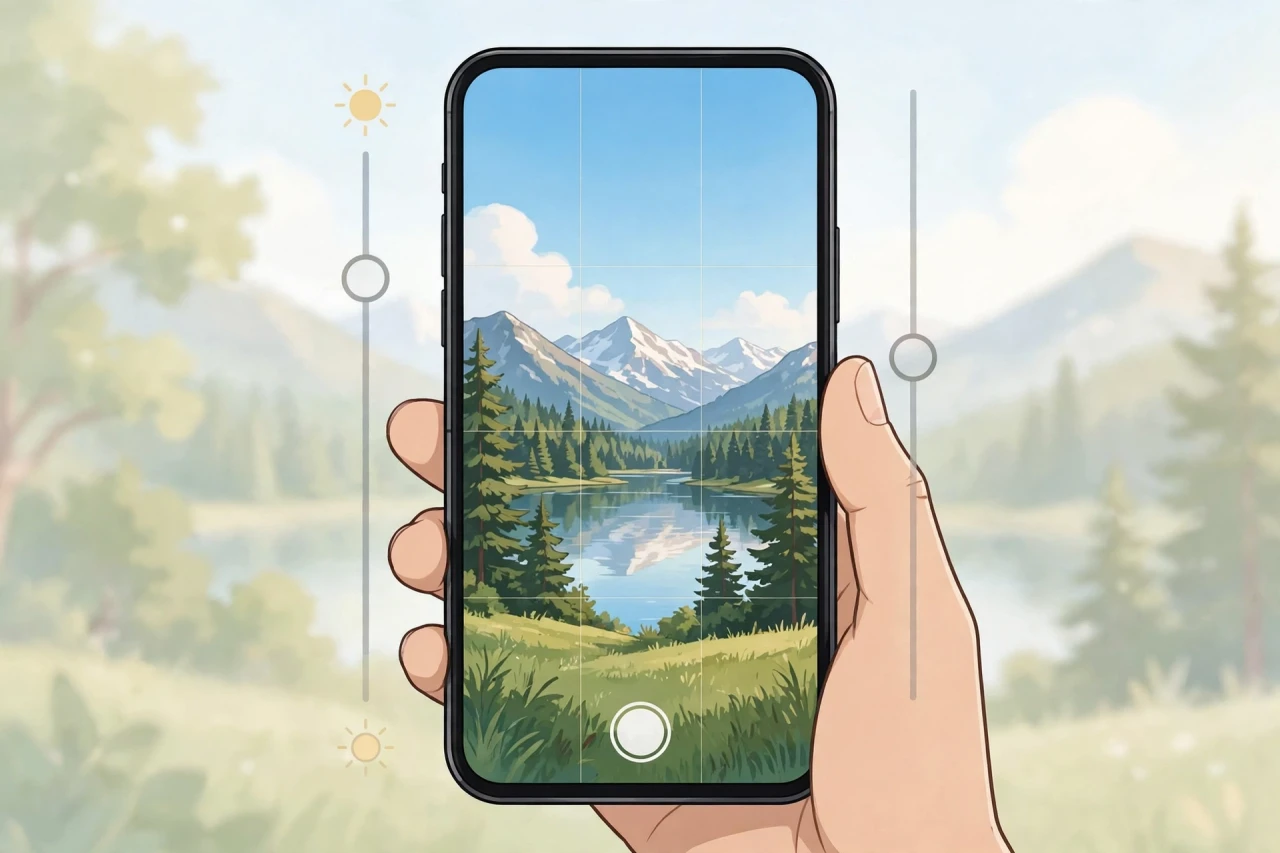
The iPhone camera is excellent out of the box — but out of the box is not where its best photos live. Buried in Settings are options that control sharpness, color science, file quality, and composition guides. Here are the hidden iPhone camera settings that instantly improve your photos, and exactly where to find them.
1. Turn on the grid and level for better composition
The rule of thirds is the fastest composition upgrade there is, and the grid makes it effortless:
- Go to Settings → Camera.
- Turn on Grid and Level.
The grid overlays a 3×3 guide on your viewfinder; the level shows a small crosshair that turns yellow when your phone is perfectly straight — no more crooked horizons.
2. Set up Photographic Styles (your personal color science)
Photographic Styles apply your preferred tone and warmth to every photo automatically — richer contrast, warmer skin tones, cooler landscapes — without the flat look of filters:
- Go to Settings → Camera → Photographic Styles.
- Swipe through the four presets (Standard, Vibrant, Rich Contrast, etc.) and pick the one that matches your taste.
- Fine-tune Tone and Warmth with the sliders.
Unlike filters, Styles are baked into the image pipeline intelligently — skies stay blue while skin stays natural.
3. Shoot in ProRAW for maximum editing flexibility
If you edit photos afterward, ProRAW captures far more detail and dynamic range than the standard format:
- Go to Settings → Camera → Formats.
- Under Photo Capture, choose ProRAW (available on Pro models).
Warning: ProRAW files are large (25MB+ each). Use it for shots you plan to edit, not everyday snaps.
4. Use the right format: High Efficiency vs. Most Compatible
In Settings → Camera → Formats you will see two options:
- High Efficiency (HEIF/HEVC): smaller files, same quality — best for most people.
- Most Compatible (JPEG/H.264): larger files, but opens everywhere without conversion — choose this if you share photos with older devices or Windows PCs regularly.
5. Lock exposure and focus with one gesture
In the Camera app, tap and hold on your subject until "AE/AF LOCK" appears. This locks focus and exposure so they stop shifting as you reframe — essential for backlit portraits and tricky lighting. A sun icon appears next to the lock; slide your finger up or down to fine-tune brightness manually.
6. Use Night mode deliberately
When the moon icon appears in the Camera app, Night mode is active. Tap it and drag the slider to Max for the longest exposure in very dark scenes — but keep the phone still (brace it against something). A UBeesize 67" camera tripod with travel bag makes this far easier — rock-steady long exposures with no blur. For handheld shots, the automatic duration is usually the right call.
7. Turn on Macro Control
On Pro models, the camera auto-switches to the ultra-wide lens for close-ups, which can be jarring. Go to Settings → Camera and turn on Macro Control — a small flower icon then appears in the Camera app, letting you switch macro mode on and off manually.
8. Mirror your front camera selfies
Front-camera photos are flipped by default, which is why selfies look "wrong" compared to the preview. Go to Settings → Camera and turn on Mirror Front Camera so saved selfies match what you saw on screen.
9. Use Burst mode for action shots
Trying to photograph kids, pets, or sports? A single tap rarely catches the perfect moment. Press and hold the shutter button and slide left to fire off a burst of photos (on older iPhones, just hold the volume-up button). Afterward, open the burst in Photos, tap Select, and keep only the sharpest frames — then delete the burst to reclaim space.
10. Manage Live Photos deliberately
Live Photos capture 1.5 seconds of video with every shot — lovely for memories, wasteful for storage. In the Camera app, tap the concentric-circles icon to toggle Live Photos off for everyday shots. Better: go to Settings → Camera → Preserve Settings and turn on Live Photo so the camera remembers your choice instead of resetting it every time you reopen the app.
The bottom line
Better iPhone photos are rarely about a better phone — they are about better settings. Turn on the grid, dial in a Photographic Style, lock your exposure, and your everyday shots will look noticeably more professional starting today.
Disclosure: This post contains affiliate links. If you buy through them, I may earn a commission at no extra cost to you.
As an Amazon Associate I earn from qualifying purchases.


Comments
Post a Comment