Need to text your boss at 9 AM but you will be asleep? Want birthday wishes to land at midnight without staying up? Scheduling text messages on Android is built right into Google Messages — no third-party app needed. Here is how it works, plus what to do on Samsung phones.
Schedule a text in Google Messages
Google Messages is the default texting app on Pixel and most Android phones, and scheduled sending is baked in:
- Open Google Messages and open the conversation (or start a new one).
- Type your message as normal — but do not tap send yet.
- Long-press the send button (the arrow icon). A scheduling menu pops up.
- Choose one of the suggested times, or tap Schedule to pick your own date and time.
- Tap Save, then tap Send — the button now shows a small clock icon.
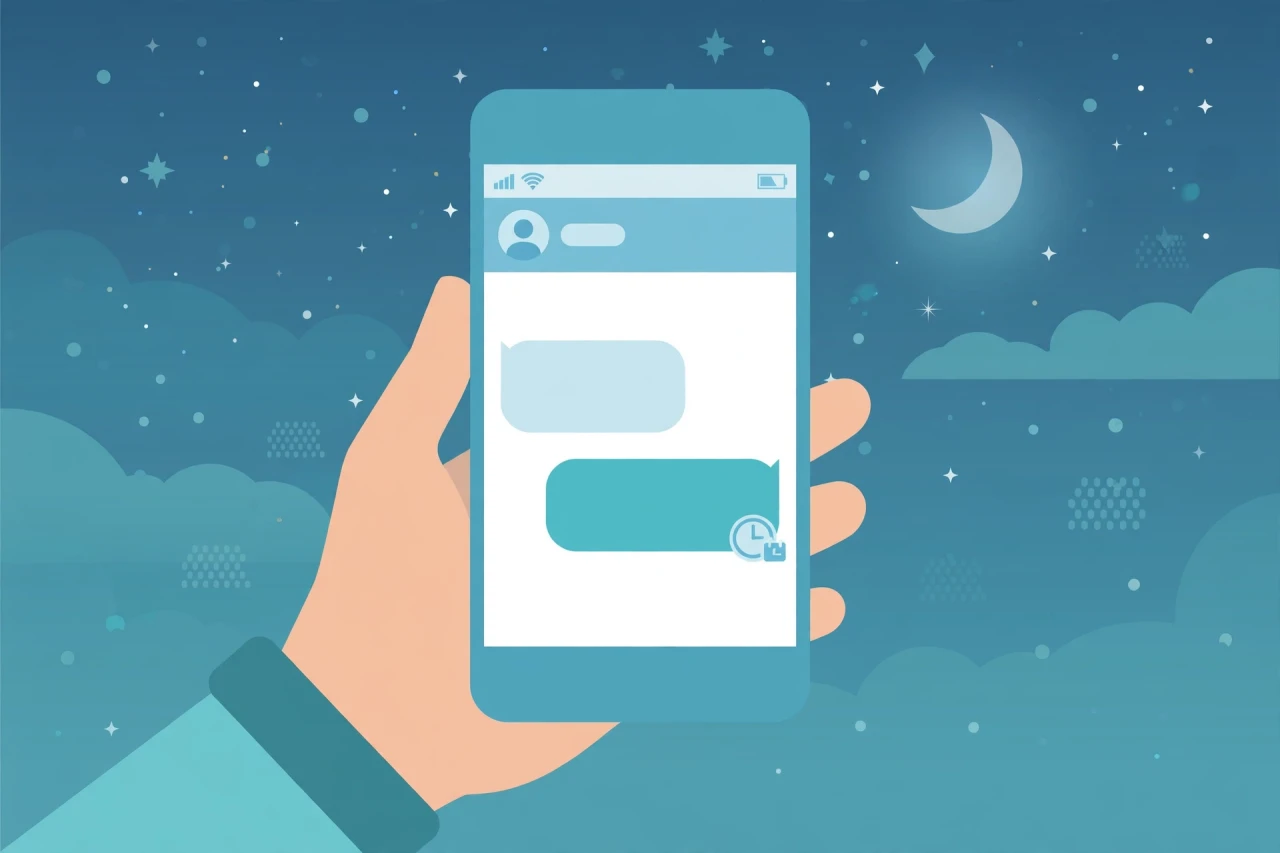
Your message sits in the conversation with a "Scheduled" label and a clock icon. It sends automatically at the chosen time — even if the Messages app is closed.
To edit or cancel a scheduled message
- Tap the clock icon next to the scheduled message to Update (change the text or time), Send now, or Delete it.
Schedule texts on Samsung Messages
Samsung's own Messages app has the same feature with a slightly different gesture:
- Open Samsung Messages and type your message.
- Tap the + icon (or the arrow next to the text field, depending on your One UI version).
- Tap Schedule message, set the date and time, and tap Done.
- Tap Send — the message will show as scheduled.
Important things to know
- Your phone must be on and connected at the scheduled time. If your phone is off or has no signal, the message sends when the phone comes back online. A dead battery is the usual culprit here, so keeping a compact magnetic power bank handy makes this easier.
- Scheduled messages work for SMS and RCS alike in Google Messages.
- Time zones: the message sends at the scheduled time in your phone's current time zone. If you travel between scheduling and sending, double-check.
- There is no limit on how far ahead you can schedule — weeks or months out works fine.
- Group chats: scheduling works in group conversations too.
Clever uses for scheduled texts
- Birthday and anniversary messages — write them when you remember, deliver them at midnight.
- Work boundaries — draft that email-like text at 11 PM, schedule it for 9 AM so you do not look (or feel) like you work all night.
- Recurring check-ins — schedule a weekly "thinking of you" to a parent or friend.
What about iPhone?
iPhone users: Apple added scheduled sending in iMessage with iOS 18 — tap the + button in a conversation, choose Send Later, and pick a time. The feature only works for iMessage (blue bubbles), not SMS.
Recurring scheduled texts (the one thing built-in apps cannot do)
Google Messages and Samsung Messages schedule one-off messages, but not repeating ones. For a weekly reminder text, you have two options:
- Google Calendar or Tasks: set a recurring reminder with the message text in the notes — you get nudged, then send manually. Reliable and free.
- Third-party SMS schedulers (e.g., SKEDit on the Play Store): these can send recurring scheduled SMS automatically. Grant them SMS permission carefully, and test with a message to yourself first — scheduling reliability varies by phone brand because of aggressive battery optimization.
For most people, the built-in one-off scheduling plus a calendar reminder covers every real need.
Scheduled texts and dual-SIM phones
If you use two SIMs, the scheduled message sends from whichever SIM is set as default for that conversation at send time — not at scheduling time. If you switch your default SIM or travel with an eSIM, double-check the conversation's SIM setting before the message goes out. In Google Messages, tap the SIM icon in the conversation header to confirm.
The bottom line
Scheduled texting is one of those features you use constantly once you know it exists. Long-press that send button, pick a time, and never again stay up until midnight to send a birthday text.
Disclosure: This post contains affiliate links. If you buy through them, I may earn a commission at no extra cost to you.
As an Amazon Associate I earn from qualifying purchases.




Comments
Post a Comment